


Google Pay
A simple and secure way to pay with your KFH cards
Google Pay – Fast. Simple. Secure.
Google Pay™ is a fast, easy, and secure way to make payments using your Android phone or compatible smartwatch. Simply add your eligible KFH debit card to Google Wallet and start paying right away—whether you’re shopping online, in apps, or in stores.
You can use Google Pay wherever you see the contactless or Google Pay symbols:

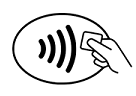
With Google Pay, you can make payments without cash or your physical card. For in-store payments, you’ll need an Android device with contactless (NFC) capability. Google Pay uses advanced security technology to protect your card details, ensuring a smooth and secure payment experience every time.
How do I add my KFH card to Google Wallet?
Using the Google Wallet app:
• 1. Open the Google Wallet app or visit wallet.google.com.
• 2. Tap Menu (skip this step when using the website).
• 3. Select Payment methods.
• 4. Tap Add payment method.
• 5. Choose Add debit card.
• 6. Scan your card using your camera or enter the details manually.
• 7. Complete the verification process, if prompted, by entering the code sent to you.
• 8. Tap Save.
How do I pay with Google Pay?
In Stores (Contactless):
• Wake or unlock your Android phone and hold it near the contactless terminal until you see a confirmation or feel a vibration.
• For higher-value transactions, you may be required to unlock your device.
On Websites:
• At checkout, select the Google Pay button, choose your card and delivery details (if applicable), and confirm the payment.
In Apps:
• Select Google Pay at checkout and confirm your payment.
On Smartwatches (Wear OS):
• Open Google Wallet on your watch and hold it near the reader until you hear a sound or feel a vibration.
Connectivity:
• Most in-store payments do not require an internet connection. Your device may need to connect occasionally or after restarting for security verification.
What is Google Pay?
Google Pay is a safe and easy way to make payments without using cash or your physical card, both in-store and online.
How does Google Pay work?
Google Pay uses Near Field Communication (NFC) for contactless payments in stores and supports payments on websites and in apps that offer Google Pay.
Which devices are compatible with Google Pay?
Android devices running Android 5.0 (Lollipop) or later, as well as compatible Wear OS smartwatches.
Which KFH cards can be used with Google Pay?
All KFH cards are eligible to be added to Google Wallet and used with Google Pay.
How do I set my KFH card as the default payment card?
Open the Google Wallet app, select your preferred KFH card, and tap Set as default.
Where can I use Google Pay?
You can use Google Pay:
• In stores that accept contactless payments
• In apps that support Google Pay
• On websites displaying the Google Pay button
• On supported public transport networks
Are there any fees for using Google Pay?
KFH does not charge any additional fees for using Google Pay. Mobile data charges may apply depending on your service provider.
Do I need Wi-Fi or mobile data to make payments?
Most in-store payments do not require an internet connection. Connectivity may be needed occasionally for security checks.
How can I track my Google Pay transactions?
• Open Google Wallet to view recent transactions
• Swipe up to view activity history
• Tap on any transaction for more details
Can I cancel a payment made with Google Pay?
Cancellations follow the same process as payments made using your physical card and are subject to the merchant’s return or cancellation policy.
What should I do if my physical card is lost or replaced?
• Remove the old card from Google Wallet and add your new replacement card.
• Contact KFH immediately via the Fraud Hotline: +44 (0) 20 7487 6679
Will Google Pay work if my card is blocked?
• No. Transactions made with a blocked card—whether physical or digital—will be declined.
What should I do if I lose my Google Pay-enabled device?
• Visit wallet.google.com from another device to suspend or remove your cards. You can also use your device’s Find My Device feature to secure it.
Why was my Google Pay transaction declined?
Common reasons include:
• The card has not been activated (try a chip-and-PIN transaction first)
• The device was not unlocked for a high-value transaction
• Insufficient funds, card restrictions, or merchant limitations
Is Google Pay secure?
• Yes. Google Pay uses device authentication (PIN, fingerprint, or facial recognition) and tokenisation, which means your actual card number is never shared with merchants.
Need More Help?
Visit support.google.com or contact Kuwait Finance House for assistance.
Contact Kuwait Finance House for assistance on +44 (0) 20 7487 6500.